Manual Data Capture
Hint
This section offers detailed guidance for manually entering data into RareLink CDM forms:
For more information about the RareLink CDM, visit RareLink-CDM.
Instructions for installing the RareLink CDM instruments in REDCap are available at Set up the RareLink Framework.
Overview
Hint
In case you would like to customise your RareLink-CDM Data Dictionary to simplify manual data entry, please refer to the Customise the Data Dictionary section for more information. Also, feel free to Contact us or write an issue on GitHub in case you have any questions or need help.
General Information (please read!)
This section provides general information about the manual data capture process:
Purpose: The manual data capture guide is designed to facilitate the entry of patient data into the RareLink-CDM. It provides detailed instructions for completing each section of the RareLink CDM forms.
Feedback: If you encounter any issues or have suggestions for improving the manual data capture process, please find more information in the FAQ section or write a GitHub issue. RareLink is a collaborative effort, and we welcome your feedback.
ERDRI-CDS: The European Registry Registration requires specific fields to be completed. You can find the ERDRI-CDS here and the corresponding fields in the RareLink-CDM marked with
ERDRI-CDSin the guide.Data Security: Ensure your local REDCap project is set up, and everything is sorted with your local REDCap administrator. When capturing real patient data, ensure that the REDCap project is in Production Mode! Read the REDCap-Background section for more information and discuss this with your local REDCap administrator.
Searching Terminologies with BioPortal: Many RareLink sheets feature integrated BioPortal search functionality. When searching, consider using synonyms or abbreviations, as these are also indexed in BioPortal. If you cannot find the desired term, try searching for broader or related terms. Alternatively, use the OLS Platform to identify the correct code and display for the concept you are looking for.
Updates: This section will continue to evolve as RareLink documentation expands. Please check the Changelog and FAQ sections for updates and additional information.
Types of Fields:
Mandatory Fields
*: Mandatory fields are marked within this guide with a red asterisk (*). Ensure that all mandatory fields are completed before saving the form.Optional Fields: Fields that are not mandatory can be left blank if the information is unknown or not required. This flexibility allows for partial data entry while maintaining focus on required fields.
Types of Instruments:
Single-Entry Form |
–> These forms are designed for one-time data entry and capture information that is not expected to change over time, but can be re-edited if necessary.
Repeated Form |
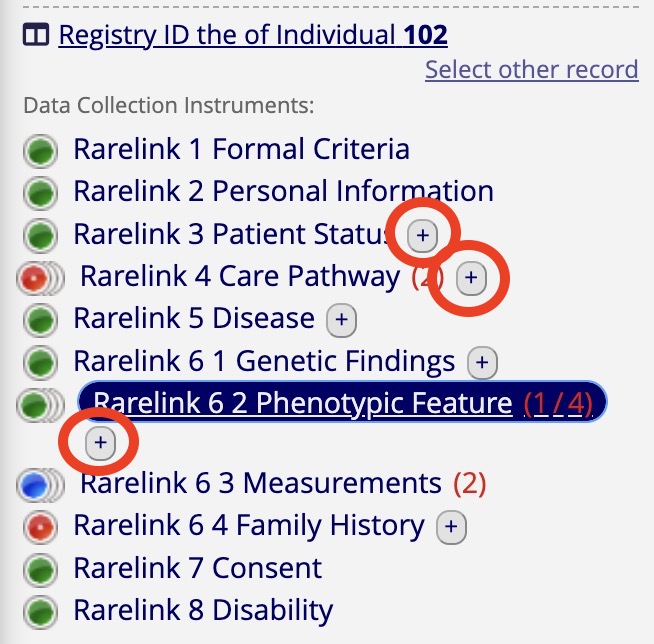
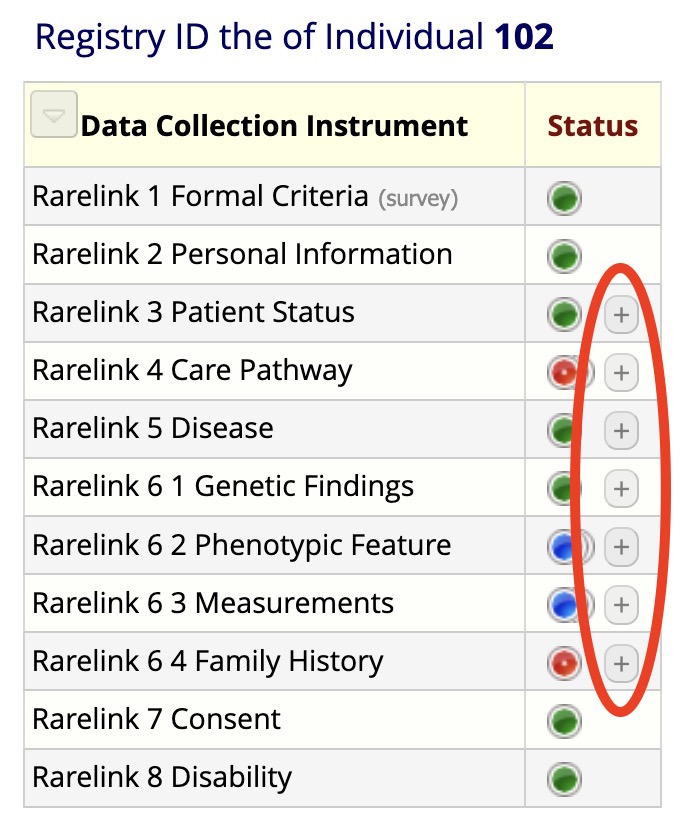
–> These forms are designed for capturing information that may change over time, such as patient status, care pathway, and disease history. You can repeat these forms to reflect changes over time.
If you are within the form, you can use the “Save and Add New Instance” at the end of the sheet button to create a new instance of the form directly.
Alternatively when viewing the individual record, you can click the “+” button next to the form name. This action will create a new instance of the form, allowing you to capture additional data points for the same individual.
Important
When creating a record, the minimal fields that must to be filled in are:
1.1 Psuedonym
1.2 Date of Admission
2.1 Date (or Year) of Birth
7.1 Consent Status
… please find below more information about the fields.
Return to top.
(1) Formal Criteria
Single-Entry Form |
This section contains information related to the formal criteria of individuals:
Record ID: Unique identifier for the record automatically assigned by the local REDCap project. It is not editable, but can be used for reference within your REDCap project, study, or registry.
1.1 - Pseudonym (
*,ERDRI-CDS): Unique identifier for the individual, often used as a local patient-related identification code or registry ID.1.2 - Date of Admission (
*): The date of admission or data capture. Ensure the format is YYYY-MM-DD.
Return to top.
(2) Personal Information
Single-Entry Form |
This section captures personal details about the individual.
Fields that are not mandatory can be left blank if the information is unknown or not required.
2.1 - Date of Birth (
*,ERDRI-CDS): The individual’s date of birth. If exact dates are not allowed to be entered, enter approximate dates in the format01.MM.YYYYor01.01.YYYY.2.2 - Sex at Birth:
ERDRI-CDS2.5 - Country of Birth: Refer to the ISO 3166 Country Codes to search for the country code. Enter only the three-letter ISO code (e.g.,
CAN,TUR).
Return to top.
(3) Patient Status
Repeated Form |
This section tracks the status of the patient over time.
Forms can be repeated to reflect changes over time (e.g., vital status, rare disease cases).
For ontology-specific searches, use OLS Platform for a smoother experience.
If exact dates are unknown, enter approximate dates in the format
01.MM.YYYYor01.01.YYYY.Fields that are not mandatory can be left blank if the information is unknown or not required.
patient_status_date:
*3.1 - Vital Status:
ERDRI-CDS3.2 - Time of Death:
ERDRI-CDS3.5 - Length of Gestation at Birth: specify exact weeks and days in the format
35+6.3.6 Undiagnosed RD Case:
ERDRI-CDS
Return to top.
(4) Care Pathway
Repeated Form |
It is a repeated form, with one encounter per form.
If possible, use the dates of the encounter.
In relation to the Disease sheet, you can create a comprehensive overview of a patient’s disease history with encounters.
If the specific month or day is not known, select the 1st day of the month or the 1st month of the year, respectively (e.g.,
01.June.2022,01.01.2014).
4.1 Encounter Date:
ERDRI-CDS4.3 Encounter Status
*: mandatory to ensure alignment with the IPS-FHIR profiles.4.4 Encounter Type
*: mandatory to ensure alignment with the IPS-FHIR profiles - forERDRI-CDS: please select RD specialist centre!
Return to top.
(5) Disease
Repeated Form |
Hint
If you have difficulties finding the rare disease, use the OLS Platform for ontology-specific searches, for example the OLS-MONDO Search.
It is a repeated form; you can enter as many diseases as you wish with one disease per form
If information for a specific field is not known, leave it blank.
If the specific month or day is not known, select the 1st day of the month or the 1st month of the year (e.g.,
01.June.2022,01.01.2014).
5.1 Disease (
*&ERDRI-CDS): one ontology can be selected for encoding. We recommend using MONDO to encode a disease.To link a disease to genetic variant(s) in Section 6.1 Genetic Findings, enter the same MONDO or OMIM_p codes here. (OMIM_g codes refer to genes, while OMIM_p codes refer to phenotypes (see OMIM).)
The ICD-11 is not integrated into BioPortal; use the ICD-11 Browser for codes like AA10.
5.3 Age at Onset and 5.5 Age at Diagnosis (
ERDRI-CDS): select “prenatal” or “birth” where applicable, and always enter dates if available.
Return to top.
(6.1) Genetic Findings
Repeated Form |
Hint
If you have difficulties finding concepts, use the OLS Platform for ontology-specific search!
Fields that are not mandatory can be left blank if the information is unknown or not required.
Fill in all other fields about the variant, depending on the information available and your current use case. It is a repeated form; you can enter as many variants as needed.
6.1.1 Genomic Diagnosis (
ERDRI-CDS):To link a variant to a genetic diagnosis, select the corresponding disease, if applicable, also to the 5.1 Disease.
You can also link multiple variants to a single disease by repeating the form!
6.1.2 Progress Status of interpretation: required when creating GA4GH Phenopackets - You can find the exact definitions here: GA4GH ProgressStatus.
6.1.3 Interpretation Status: required when creating GA4GH Phenopackets - you can find the exact definitions here: GA4GH InterpretationStatus.
6.1.6 Genetic Mutation String: If the variant is not validated or you are unsure how to validate, enter all information in this field.
6.1.7 - 6.1.9 Variant Expression [HGVS] (
ERDRI-CDS): Please select the appropriate HGVS nomenclature for the variant.> If you are unsure, prioritize
c.HGVS.Provide validated HGVS values (HGVS Nomenclature) for genomic (g.HGVS), DNA (c.HGVS), or protein (p.HGVS) changes.
If the variant is not validated or you are unsure how to validate, enter all information in the 6.1.6 Genetic Mutation String field.
HGVS Validation:
Confirm the expression with the Variant Validator or the HGVS Validator.
If the validation fails, enter the details in the 6.1.6 Genetic Mutation String field.
*: Are you sure the entered HGVS expression was validated using the variant validator? - this field is mandatory to ensure the validation status.
6.1.15 Therapeutic Actionability: recommended when creating GA4GH Phenopackets - you can find the exact definitions here: GA4GH TherapeuticActionability.
Attention
The quality of the variant’s validated HGVS expression is crucial for the correct interpretation of the genetic findings and creation of GA4GH Phenopackets. If you are unsure about the validation, enter all information in the 6.1.6 Genetic Mutation String field and consult a geneticist.
Return to top.
(6.2) Phenotypic Features
Repeated Form |
Tip
Try to define consistent guidelines for capturing phenotypic features and their modifiers within your cohort to improve subsequent analyses.
This section provides details about phenotypic features:
Use the OLS Platform for ontology-specific searches, or visit HPO for HPO codes.
6.2.1 Phenotypic Feature (
*&ERDRI-CDS): It is a repeated form; enter as many phenotypic features as needed.6.2.2 Status
*: Always enter the status as either confirmed or refuted.6.2.3 Determination Date: If the specific month or day is not known for the determination date, select the 1st day of the month or the 1st month of the year (e.g.,
01.June.2022,01.01.2014).Note: If possible, capture the time a characteristic was observed by the individual, not the time it was recorded.
- 6.2.8 Clinical Modifiers: Encode modifiers for more detailed deep phenotyping, e.g.:
subclasses of HP:0012823 (Clinical modifier),
infectious agents using NCBITAXON,
or the body site using SNOMED CT.
6.2.9 Evidence: as recommended by the Phenopacket Scehma, try to provide the evidence code for the phenotypic feature, e.g. ECO:0006017 (“author statement from published clinical study used in manual assertion”).
Return to top.
(6.3) Measurements
Repeated Form |
Tip
Define a set of rules for capturing measurements and procedures within a cohort to improve subsequent analyses.
It is a repeated form; capture information for one measurement and repeat as many times as necessary. - Fields that are not mandatory can be left blank if the information is unknown or not required.
6.3.0 Category
*: mandatory to ensure alignment with the IPS-FHIR profiles.6.3.1 Assay
*: encoded with LOINC codes. Use the LOINC Search to find the correct code if you cannot find it in the embedded search.6.3.2 Value
*: must be a value two digit decimal number.6.3.3 Value Unit
*: encoded with the Units of measurement ontology (UO) codes. Use the OLS-UO Search to find the correct code if you cannot find it in the embedded search.6.3.4 Interpretation: NCIT encoded interpretation of the measurement. Try remain consistent with the interpretation codes used in your cohort, for example using the concepts Above Refernce Range or Below Reference Range.
6.3.5 Time Observed:
*: mandatory to ensure alignment with the IPS-FHIR profiles.
Tip
OLS Platform for ontology-specific searches if you cannot find the concepts you are looking for.
The Measurements form can also be used to capture medical procedures by selecting the measurement category ``procedure``.
When the category procedure is selected:
The recorded information is interpreted as a medical action
The data are mapped differently depending on the target standard:
- FHIR / IPS
The information is exported into the FHIR-IPS Procedure Profile
Procedures must be encoded using SNOMED CT
Whenever possible, use concepts from: - IPS Procedures Value Set - SNOMED CT Body Structures (for anatomical targets)
- GA4GH Phenopackets
The information is stored in the MedicalAction block
Procedures may be encoded using: - SNOMED CT, or - MAXO (Medical Action Ontology)
While both are supported, MAXO is recommended where applicable, as current and upcoming analysis algorithms developed by the HPO team increasingly rely on MAXO-based representations.
Note
Only procedures (not laboratory or quantitative measurements) should be captured using the procedure category. All other observations should use the appropriate measurement category (e.g. laboratory, vital signs).
Return to top.
(6.4) Family History
Repeated Form |
It is a repeated form; capture information for one family member per sheet. Fields that are not mandatory can be left blank if the information is unknown or not required.
Use the OLS Platform for ontology-specific searches.
6.4.0 Pseudonym
*: The pseudonym assigned to the family member must be entered.6.4.4 Family Member Relationship
*: the relationship of the family member to the individual captured - mandatory to ensure alignment with the IPS-FHIR profiles.6.4.5 Family Member Record Status
*: the record’s status - mandatory to ensure alignment with the IPS-FHIR profiles.
Return to top.
(7) Consent
Single-Entry Form |
This section captures consent-specific data:
Specify consent details for registry use.
The fields marked with
ERDRI-CDSare required for the European Registry Registration.
7.1 Consent Status:
*7.3 Health Policy Monitoring
*: if unsure, you can enter any string that indicates an unknown status for this field.7.4 Agreement to be contacted for research purposes:
*&ERDRI-CDS7.5 Consent to the reuse of data:
*&ERDRI-CDS7.6 Biological sample :
ERDRI-CDS7.7 Link to a biobank (
ERDRI-CDS): If applicable, provide a link to the BioBank.
Return to top.
(8) Disability
Single-Entry Form |
This section provides details about disabilities:
Enter the disability code from the ICF (International Classification of Functioning, Disability, and Health).
Ensure the data corresponds to the date of admission or data entry.
8.1 Disability:
ERDRI-CDS
Return to top.